• Facebook Help Center

See How you can Boost a Post on Facebook Page

 No comments   

See How you can Boost a Post on Facebook Page: Spending a lot of time to develop content to share on Facebook, sometimes you still have a decline of organic reach. This why you need to boost your Facebook page.This actually means paying to get your content viewed by people.

We would show you just how to, so you can make the most of it. Basically the benefits of boosting your page includes: Get a wider, targeted audience, make up for declining organic reach, and gain access to analytics.


How to Boost a Post on Facebook Page

1. Choose a post to boost

If you’re going to be drafting a post that you want to boost right out of the gate, click the grey Boost Post button in the lower-right corner of the post box.
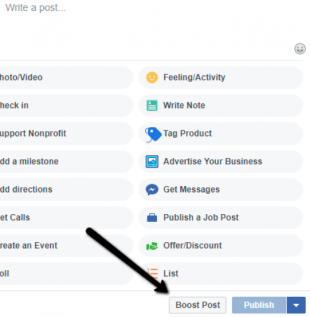

If you’d like to boost an already existing piece of content, click the blue Boost Post button in the lower-right corner of the post you want to boost. Or, you can navigate to the Insights tab and see a list of all your posts. Each will have a Boost Post button next to it.



2. Target your audience

After you have clicked the Boost Post button you’ll be taken to a menu where you can begin to select targeting options. By default, you could opt to include only people who currently like your Page, or all current followers and their friends. However, most businesses prefer a demographic specific target, based on age, location, sex, or interests. If you want to create a custom audience (or more than one) for your boosted post, click the Create New Audience option.
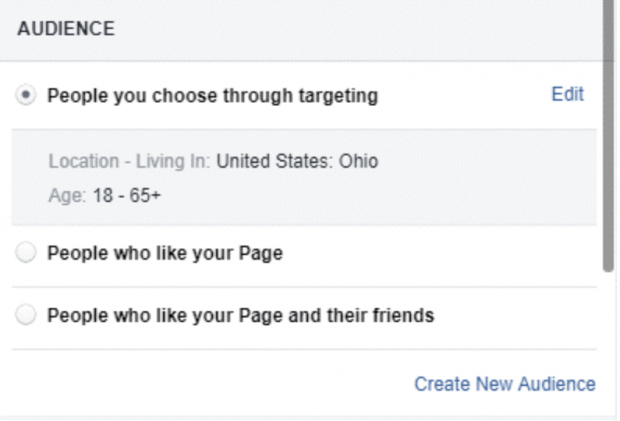

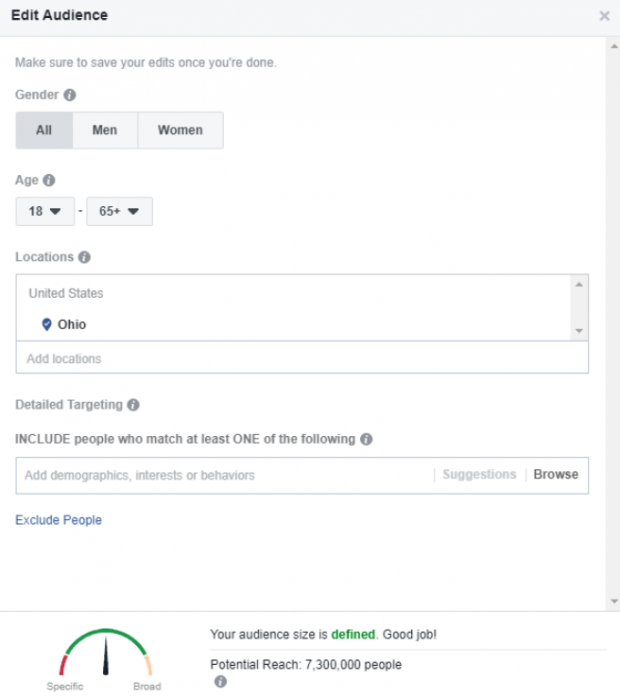
From there, you’ll have the ability to define your audience however you’d like. Here, you can add or remove locations, set the age range, and even include people who are interested in specific topics or pages.

3. Set your budget

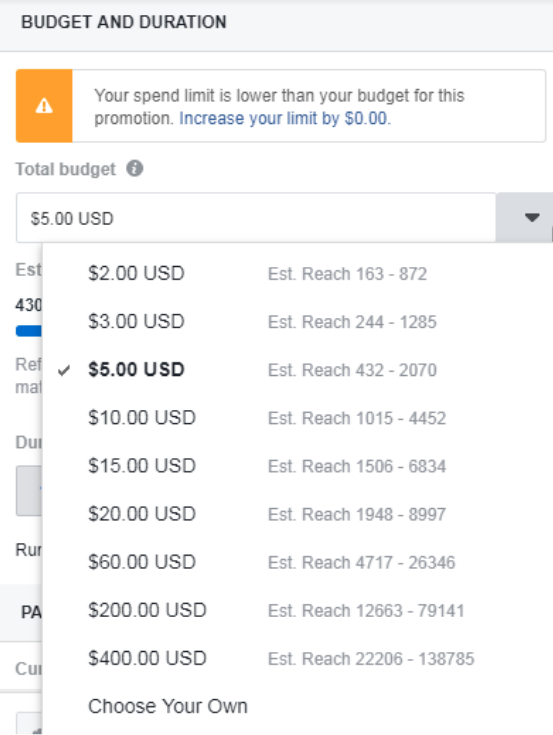
Once you’ve defined your target audience, you’ll need to choose a convenient budget for your campaign. Since your audience is set, you’ll have a realistic gauge for how far your post can reach under each budget tier. Remember, the minimum is $1 per day; this budget will be your total budget for the campaign, spread across however many days you want to run it.

4. Set the boost duration

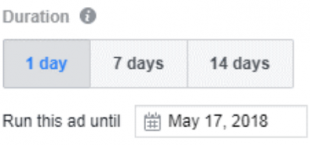
Next, you will need to decide how long you want your post to run. By default, you can choose one day, seven days, or 14 days. Or you can choose to run the ad until a specified date in the future.

5. Preview the post

It would be nice if you review the ad copy and creative. Make sure it’s free of errors, that all the links work, and all the visual elements look good. This is your last chance to make changes before it goes live.

6. Select a payment option

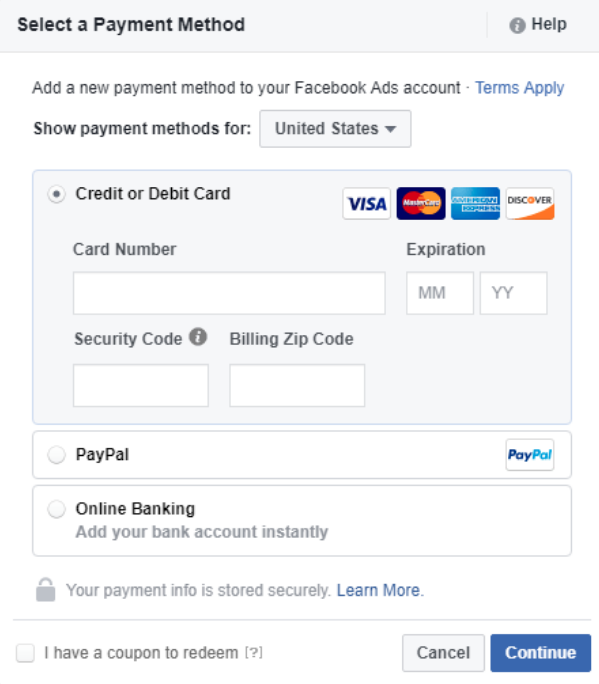
Facebook is open to all the payment types you might expect. All you need to do is fill out your details (that is if they aren’t already saved in Facebook).


7. Boost

It's all set, and you’re ready to boost! Facebook does review all boosted posts, so it may take a while before you see yours published. You can check the status of your boosted posts at any time by looking at the Delivery column of your Ads Manager.

Boosting your posts helps you save time, while you reach out to a larger audience.


  • Share This:  
  •  Facebook
  •  Twitter
  •  Google+
  •  Stumble
  •  Digg
Email ThisBlogThis!Share to XShare to Facebook
Newer Post Older Post Home

0 comments:

Post a Comment

Blog Archive

  • ►  2019 (30)
    • ►  January (30)
  • ▼  2018 (8737)
    • ►  December (14)
    • ►  November (568)
    • ▼  October (269)
      • How to Get Followers on Facebook Fan Page
      • How Can I Recover my Deleted Messages on Facebook
      • How to Get Hidden Phone Number from Facebook
      • Facebook Sign Up Page Facebook Home
      • How You Delete Facebook
      • Instagram Clear Liked Photos
      • Can I See Deleted Messages on Messenger
      • How to Block Someone on Facebook from seeing your ...
      • Facebook Admin Account
      • How Can I Disable Facebook Profile
      • How to Unblock Someone on Facebook who Blocked You
      • I Forgot my Facebook Account Password
      • How to Change Language in Facebook Login Page
      • How to Tell when you Are Unfriended on Facebook
      • How to Add an Admin to a Facebook Group
      • Pinterest Button
      • Save Profile Photos for Facebook
      • How to Reset your Facebook Password
      • Can I Reset my Instagram Account
      • Contact Facebook Help Center
      • Good Poll on Facebook
      • How to Hide your Friend List in Facebook
      • App that Shows who Blocked you on Facebook
      • How to Deactivate Instagram Account Temporarily
      • Icon FB Download
      • App Who Sees your Profile on Facebook
      • How to Know who has Unfriended you on Facebook
      • Delete Instagram Account without password
      • Unfriended Free
      • How to Show my Location on Facebook
      • Facebook Login Home Page
      • Add Instagram App to Facebook Page
      • Where to Turn off Location on iPhone
      • How to Update Messenger in iPhone
      • Sign up Facebook Email Account
      • Instagram Password Reset Hack
      • Logout Messenger Android
      • Facebook Group Remove Admin
      • Download User Instagram Photos Online
      • How to Close your Account
      • Facebook Last Name Reset
      • Learn How to Post on Facebook Timeline
      • Facebook Account Permanently Disabled
      • How to Download FB Messenger
      • Add to Block List
      • How Can I Login Facebook with Profile Picture
      • How do I pin a post to the top of my Page's timeli...
      • Learn How to View Facebook Notifications
      • How to hide friends list on Facebook | Block frien...
      • Facebook First Name Only
      • View Blocked Facebook List | Unblock Your Facebook...
      • How to Deactivate and Delete Facebook Account Fore...
      • How to Restore Old Facebook Account
      • View My blocked list on Facebook - How to Unblock ...
      • How to turn off Facebook messenger notifications
      • How to Edit Date of Birth in Facebook
      • How you can change your Facebook password now
      • Check out your Blocked list | Facebook block list
      • How can you delete your old FB account in 1 second
      • Change My Birthday Date On Facebook
      • How to Change My Password On Facebook
      • Free Happy Birthday Images for Facebook
      • How to View Private Profile In Facebook 2018
      • Can You Retrieve Deleted Messages On Facebook
      • How to Find Deleted Facebook Accounts
      • How To Access Your Blocked List On Facebook
      • Friends who Unfriend You On Facebook
      • Reset My Facebook Password
      • How to Delete Facebook Page
      • How to See Your Pokes On Facebook
      • Set up a Facebook account.
      • How Can I Know who Visited My Profile On Facebook
      • How Do You Change Profile Picture On Facebook
      • How to Create Facebook photo album
      • Download Facebook Lite App On Android - FB Free Apk
      • How To Delete A Facebook Page | Deleting Business ...
      • How Do I Log out of My Facebook Account?
      • How to Deactivate Facebook Messenger | Deactivate ...
      • Facebook Login | FB Sign Up New Account
      • How Do I Change Cover Photo on Facebook | Changing...
      • How to Delete my Facebook Page 2018
      • Clear Search History On Facebook
      • Facebook Restricted List Management: Add Or Remove...
      • How do I remove my page from Facebook? | Delete Fa...
      • Where to Find blocked list on Facebook | How to Vi...
      • See Your Facebook Blocked List | View My Blocked L...
      • Deactivate My Account on Facebook - 2018 Guide
      • Logging Out Of Facebook Messenger
      • Can You Get Deleted Messages Back From Facebook
      • How Do You Save Videos On Facebook
      • How to See Pokes On Facebook
      • How to Download Your Photos From Facebook
      • Install Messenger Facebook
      • Delete My Facebook
      • How to Download From Facebook Video
      • Retrieve Deleted Messages On Facebook
      • How to Edit Your Profile Name On Facebook
      • How to Block on Facebook
      • How to Hide Followers on Facebook
      • Restricted Friends On Facebook
    • ►  September (922)
    • ►  August (1873)
    • ►  July (266)
    • ►  June (192)
    • ►  May (1544)
    • ►  April (1335)
    • ►  March (1115)
    • ►  February (639)

Copyright © Facebook Help Center