• Facebook Help Center
Showing posts with label Recover Deleted Messages. Show all posts

How Can I Recover my Deleted Messages on Facebook

 Recover Deleted Messages     No comments   

How Can I Recover my Deleted Messages on Facebook: We have all at one time or another deleted a Facebook message we intended to keep maybe accidentally. Its not much of a big deal, in this tutorial we would go over how to recover deleted Facebook messages from your downloaded archive.


If you think you've deleted specific messages from a conversation, finding them may be time-consuming. Looking for conversations which you may have deleted are a lot easier. Well if you have deleted a message, its sad to announce to you  that its not recoverable, but we will take you through a few steps just in case you had taken precautionary measures like archiving your messages, backing up your messages with your email or downloading your messages into your computer.

Steps to Recover Deleted Facebook Messages
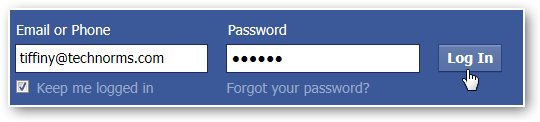
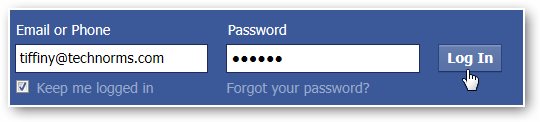
  • The first step is you’ll first need to log-in to the Facebook account you want to retrieve messages from.
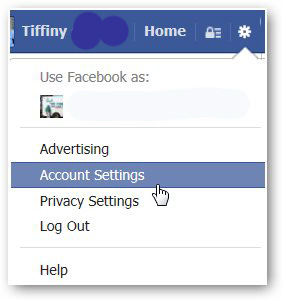
  • Next, go to “Account Settings”.After you’re logged in, go to “Account Settings” in the top right corner of the window.
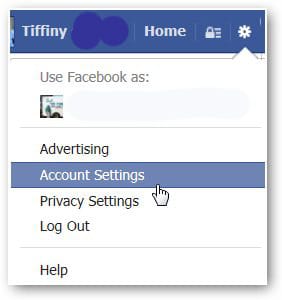
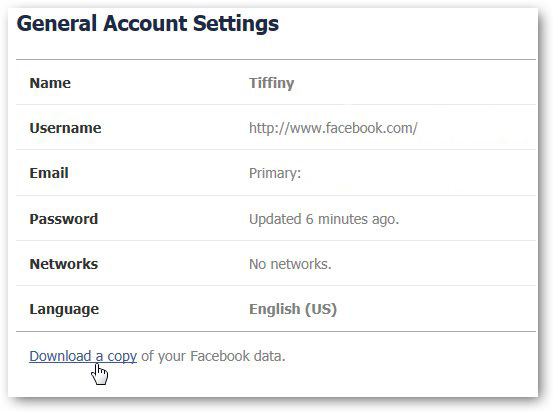
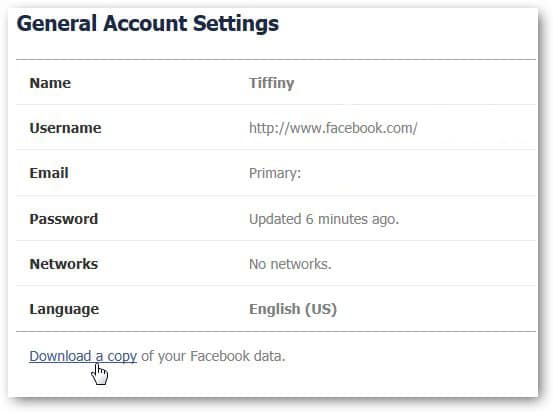
  • Once you load the “General Account Settings” page , click on “Download a copy of your Facebook data” at the bottom of the page.
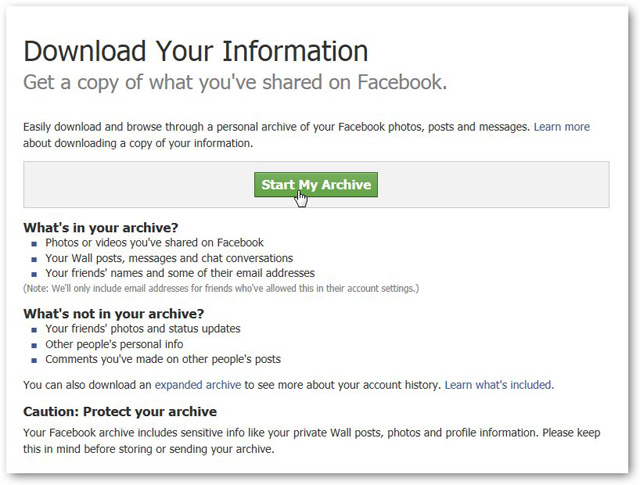
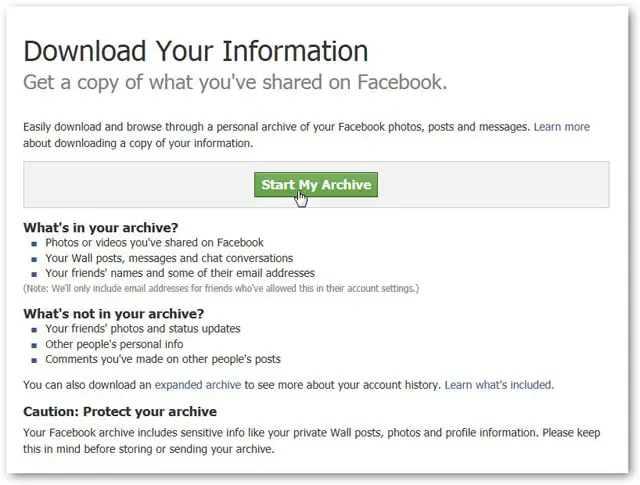
  • Download Your Archive.
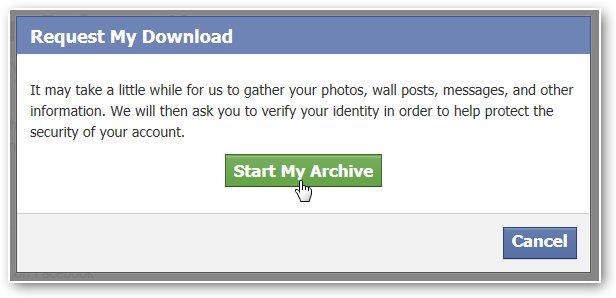
After you click on the “Download a copy…” link, you’ll be brought to a page where you can download everything you’ve done on your Facebook account since the birth of your account. Then proceed by clicking on the green button that says “Start My Archive.”
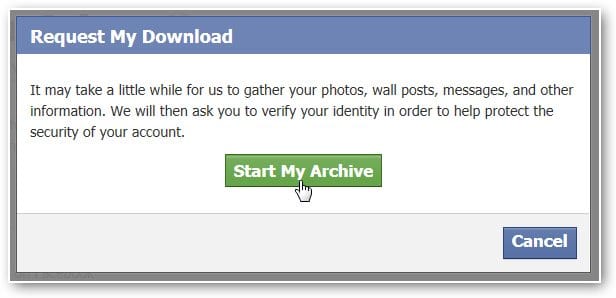
  • After you click the green button, the small dialog box “Request My Download,” will open, informing you it can take a while (typically 2-3 hours) to gather all of your information. Click “Start My Archive” again to launch the gathering process.
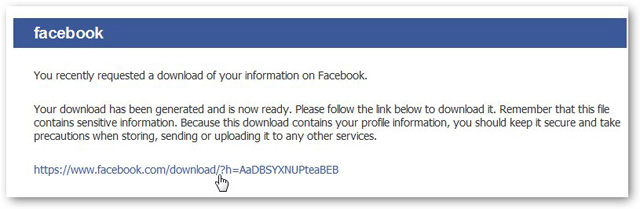
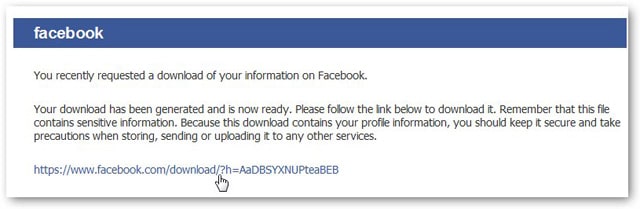
  • You’ll be requested to go to the email account associated with your Facebook profile where a download link to your archive will be sent. It may still take about 2-3 hours to arrive. Once it does, click on the link in the email to download your archive.
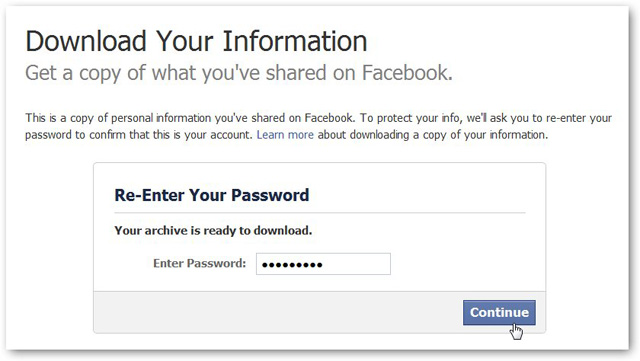
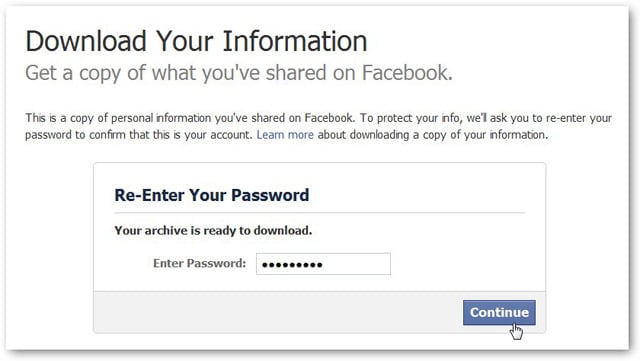
  • You will need to enter password before you can download archive.
  • Finally, click on “Download Archive” button that presents after entering your password. Your archive will download to your computer, it comes like a zip folder. Unzip it, then open the file named “index.”
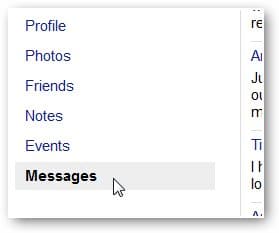
  • The file containing your archived data will open, click on “Messages” and all of your past messages will load.
  • Search by keyword,to easily find the message you’re looking for. Press “CTRL + F” or “F3” to access the keyword search process, and that’s it. Once you find the message, copy and paste the contents into a Word document to save.
It really a wonderful feature Facebook has enabled to help you restore your deleted messages. You will need to bear in mind it could take a few hours.
Read More
  • Share This:  
  •  Facebook
  •  Twitter
  •  Google+
  •  Stumble
  •  Digg

Can I See Deleted Messages on Messenger

 Recover Deleted Messages, Recover Messages     No comments   

Can I See Deleted Messages on Messenger: Facebook Messenger is an important application to stay connected with your close ones and friends. It is sometimes also an important app in a work environment and can have important work messages.

Some of your messages could be very dear to you and thus you wouldn't want to loose them. Loosing messages on Facebook will make you loose memorable messages and some other important information. With very little effort, it is possible to recover deleted Facebook messages on your Android phone. Even if you have deleted messages from the messenger app, you can still recover them.


How to Recover Deleted Messages

1: Recovering deleted Facebook messages from Android device?

Recover deleted Facebook messages

Facebook Messenger also operates with off the internet principle. This means there is always another copy of the same messages in your phone memory. Messages you thought were gone, are actually still there on your phone.This makes it possible to recover deleted Facebook messages within several simple steps easily.

Here is how you can recover your deleted Facebook Messages:
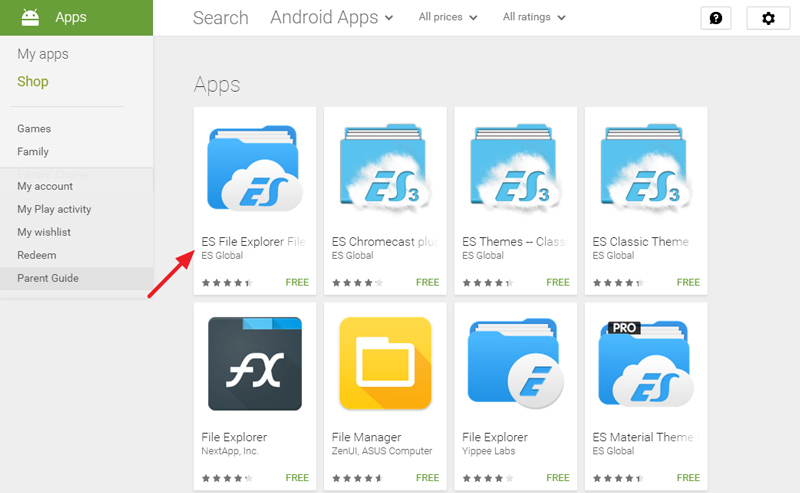
  • Download a file explorer for Android. It will help you explore the folders on your SD card. ES explorer, is one of the most preferred.


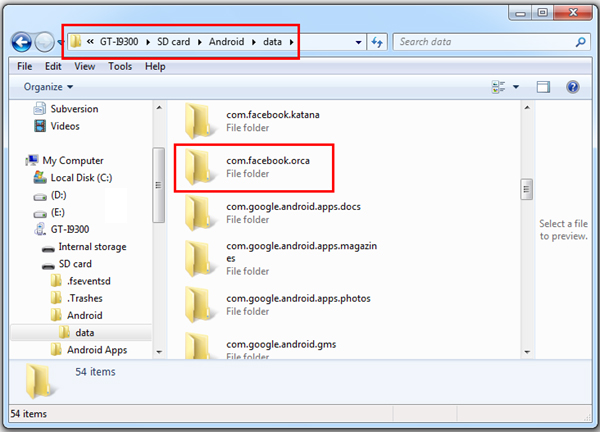
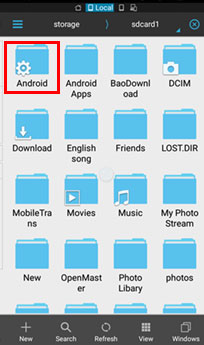
  • Open the ES File Explorer App. Go to the storage/SD card. In it you will find the android folder, which holds all the data related applications.


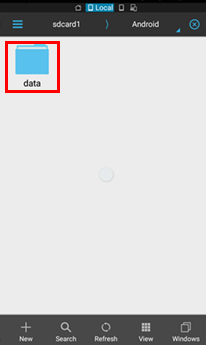
  • Enter the folder and click data folder.


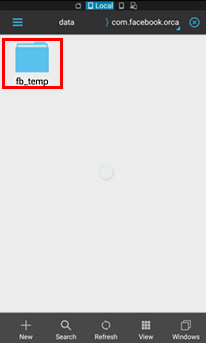
  • Under Data you will find the folders related to all applications. You will find "com.facebook.orca" folder, which belongs to Facebook Messenger. Just tap on that


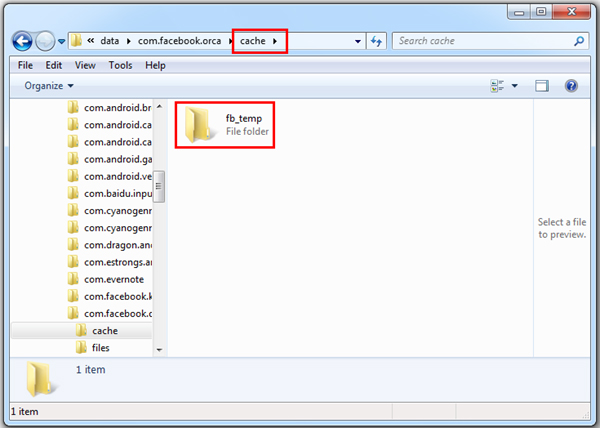
  • Now tap on the Cache folder, under which you fill find the "fb_temp". It has all the backup files related which are saved automatically by the Facebook messenger.This make sure that we can recover Facebook messages on our phone.


  • Another way to find the same files is accessing your phone memory from computer. Just connect your phone to your computer using USB. Follow the same procedure and access the fb_temp folder.


2: How to recover Facebook messages?

Archiving the Facebook messages

This is good way to secure your messages. This can be done either on Facebook website, Facebook app or Facebook Messenger, all gives you little control over your messages.

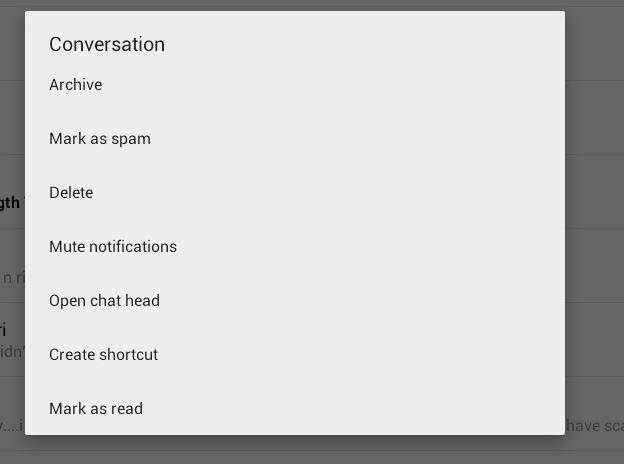
Go to the Messenger and open up your recent conversation list. Then scroll to the contact, which you want to archive and perform long press. The following windows pops up.


Archiving the entire message
  • Select the archive and it will be moved to archive that can be retrieved later when you need it.
It so simple and easy to archive Facebook messages but you must be aware the archiving contact, conversation history will be still there. In case you want to delete the conversation, go to recent tab and choose delete option after long press. This is an ultimate solution, so make sure it was oroperly thought through.

3: How to recover deleted Facebook messages from a downloaded archive

Recovering deleted Facebook Messages

Once you have archived the message they are safe. If you want to view the archived message it is also easy and simple.

If you'd like to recover deleted Facebook messages,
  • Firstly, you should log-in to the Facebook account.


  • Tap "Account Settings" as shown in the below picture.


  • Click on "Download a copy of your Facebook data" at the bottom of the page.


Here you can see a page where you download what you have done before in your Facebook account.
  • Click "Start My Archive"as shown in the below screenshot.


Then it will pop up a box named "Request My Download", which tells you that it will take a little while to gather your Facebook information.
  • Tap the green button "Start My Archive" again to start gathering all of your Facebook information.


After that, here will show a small dialog box. And there is a download link at the bottom of the dialog box.
  • Click on the link so as to download your archive. This may take about 2-3 hours if you want to recover Facebook messages.


  • Enter the password again before you download your archive.


  • Click on the "Download Archive" button and it will immediately download to your computer.
  • Unzip it, and then open the file which named "index". 
  • Click on the file "Messages" and it will load all of your past messages.
Recovering deleted Facebook messages is an an easy process, and thus you wouldn't have to worry when you delete a message mistakenly.


Read More
  • Share This:  
  •  Facebook
  •  Twitter
  •  Google+
  •  Stumble
  •  Digg

How to Recover Conversation in Messenger

 Recover Deleted Messages     No comments   

How to Recover Conversation in Messenger: We have all at one time or another deleted a Facebook message we intended to keep maybe accidentally. Its not much of a big deal, in this tutorial we would go over how to recover deleted Facebook messages from your downloaded archive.


If you think you've deleted specific messages from a conversation, finding them may be time-consuming. Looking for conversations which you may have deleted are a lot easier. Well if you have deleted a message, its sad to announce to you  that its not recoverable, but we will take you through a few steps just in case you had taken precautionary measures like archiving your messages, backing up your messages with your email or downloading your messages into your computer.

Steps to Recover Deleted Facebook Messages
  • The first step is you’ll first need to log-in to the Facebook account you want to retrieve messages from.
  • Next, go to “Account Settings”.After you’re logged in, go to “Account Settings” in the top right corner of the window.
  • Once you load the “General Account Settings” page , click on “Download a copy of your Facebook data” at the bottom of the page.
  • Download Your Archive.
After you click on the “Download a copy…” link, you’ll be brought to a page where you can download everything you’ve done on your Facebook account since the birth of your account. Then proceed by clicking on the green button that says “Start My Archive.”

  • After you click the green button, the small dialog box “Request My Download,” will open, informing you it can take a while (typically 2-3 hours) to gather all of your information. Click “Start My Archive” again to launch the gathering process.
  • You’ll be requested to go to the email account associated with your Facebook profile where a download link to your archive will be sent. It may still take about 2-3 hours to arrive. Once it does, click on the link in the email to download your archive.
  • You will need to enter password before you can download archive.
  • Finally, click on “Download Archive” button that presents after entering your password. Your archive will download to your computer, it comes like a zip folder. Unzip it, then open the file named “index.”
  • The file containing your archived data will open, click on “Messages” and all of your past messages will load.
  • Search by keyword,to easily find the message you’re looking for. Press “CTRL + F” or “F3” to access the keyword search process, and that’s it. Once you find the message, copy and paste the contents into a Word document to save.
It really a wonderful feature Facebook has enabled to help you restore your deleted messages. You will need to bear in mind it could take a few hours.
Read More
  • Share This:  
  •  Facebook
  •  Twitter
  •  Google+
  •  Stumble
  •  Digg

How to Recover your Facebook Messages

 Recover Deleted Messages     No comments   

How to Recover your Facebook Messages: We have all at one time or another deleted a Facebook message we intended to keep maybe accidentally. Its not much of a big deal, in this tutorial we would go over how to recover deleted Facebook messages from your downloaded archive.


If you think you've deleted specific messages from a conversation, finding them may be time-consuming. Looking for conversations which you may have deleted are a lot easier. Well if you have deleted a message, its sad to announce to you  that its not recoverable, but we will take you through a few steps just in case you had taken precautionary measures like archiving your messages, backing up your messages with your email or downloading your messages into your computer.

Steps to Recover Deleted Facebook Messages
  • The first step is you’ll first need to log-in to the Facebook account you want to retrieve messages from.
  • Next, go to “Account Settings”.After you’re logged in, go to “Account Settings” in the top right corner of the window.
  • Once you load the “General Account Settings” page , click on “Download a copy of your Facebook data” at the bottom of the page.
  • Download Your Archive.
After you click on the “Download a copy…” link, you’ll be brought to a page where you can download everything you’ve done on your Facebook account since the birth of your account. Then proceed by clicking on the green button that says “Start My Archive.”

  • After you click the green button, the small dialog box “Request My Download,” will open, informing you it can take a while (typically 2-3 hours) to gather all of your information. Click “Start My Archive” again to launch the gathering process.
  • You’ll be requested to go to the email account associated with your Facebook profile where a download link to your archive will be sent. It may still take about 2-3 hours to arrive. Once it does, click on the link in the email to download your archive.
  • You will need to enter password before you can download archive.
  • Finally, click on “Download Archive” button that presents after entering your password. Your archive will download to your computer, it comes like a zip folder. Unzip it, then open the file named “index.”
  • The file containing your archived data will open, click on “Messages” and all of your past messages will load.
  • Search by keyword,to easily find the message you’re looking for. Press “CTRL + F” or “F3” to access the keyword search process, and that’s it. Once you find the message, copy and paste the contents into a Word document to save.
It really a wonderful feature Facebook has enabled to help you restore your deleted messages. You will need to bear in mind it could take a few hours.
Read More
  • Share This:  
  •  Facebook
  •  Twitter
  •  Google+
  •  Stumble
  •  Digg

Can you Recover Facebook Messenger Messages

 Recover Deleted Messages     No comments   

Can you Recover Facebook Messenger Messages: We have all at one time or another deleted a Facebook message we intended to keep maybe accidentally. Its not much of a big deal, in this tutorial we would go over how to recover deleted Facebook messages from your downloaded archive.


If you think you've deleted specific messages from a conversation, finding them may be time-consuming. Looking for conversations which you may have deleted are a lot easier. Well if you have deleted a message, its sad to announce to you  that its not recoverable, but we will take you through a few steps just in case you had taken precautionary measures like archiving your messages, backing up your messages with your email or downloading your messages into your computer.

Steps to Recover Deleted Facebook Messages
  • The first step is you’ll first need to log-in to the Facebook account you want to retrieve messages from.
  • Next, go to “Account Settings”.After you’re logged in, go to “Account Settings” in the top right corner of the window.
  • Once you load the “General Account Settings” page , click on “Download a copy of your Facebook data” at the bottom of the page.
  • Download Your Archive.
After you click on the “Download a copy…” link, you’ll be brought to a page where you can download everything you’ve done on your Facebook account since the birth of your account. Then proceed by clicking on the green button that says “Start My Archive.”

  • After you click the green button, the small dialog box “Request My Download,” will open, informing you it can take a while (typically 2-3 hours) to gather all of your information. Click “Start My Archive” again to launch the gathering process.
  • You’ll be requested to go to the email account associated with your Facebook profile where a download link to your archive will be sent. It may still take about 2-3 hours to arrive. Once it does, click on the link in the email to download your archive.
  • You will need to enter password before you can download archive.
  • Finally, click on “Download Archive” button that presents after entering your password. Your archive will download to your computer, it comes like a zip folder. Unzip it, then open the file named “index.”
  • The file containing your archived data will open, click on “Messages” and all of your past messages will load.
  • Search by keyword,to easily find the message you’re looking for. Press “CTRL + F” or “F3” to access the keyword search process, and that’s it. Once you find the message, copy and paste the contents into a Word document to save.
It really a wonderful feature Facebook has enabled to help you restore your deleted messages. You will need to bear in mind it could take a few hours.
Read More
  • Share This:  
  •  Facebook
  •  Twitter
  •  Google+
  •  Stumble
  •  Digg
Older Posts Home

Blog Archive

  • ▼  2019 (30)
    • ▼  January (30)
      • Facebook Lite Download
      • How to Upload High Quality Photos to Instagram
      • Login Instagram Online
      • Who Viewed My Facebook Profile Recently 2019
      • Get Real Instagram Followers
      • Instagram Facebook Login
      • Who Visited My Facebook Profile How to Check
      • Temporarily Disable Facebook Account
      • Free Collage Maker for Facebook
      • How Do I Find My Videos On Facebook
      • People You May Know Facebook
      • How to Find someone On Facebook by Phone Number
      • How Do People Get Famous On Instagram In 2019
      • How to Change Date of Birth in Facebook
      • Posting Multiple Pictures On Facebook
      • How To Find Your Blocked Friends On Facebook
      • How to Get Unblocked On Facebook
      • Add Phone Number to Facebook Account
      • Deactivate Instagram Account Link
      • How We Close Facebook Account
      • How to remove fb temporarily or permanently
      • How to Unsend a Facebook Message | Facebook Messen...
      • How to deactivate your FB account in 10secs | Temp...
      • How can i cancel my Facebook account totally | Clo...
      • FACEBOOK MARKETPLACE BUY AND SELL SAFELY
      • How Do You Know Who Unfollowed You | How to Know W...
      • How To Change My Fb Account Name | Edit Your Faceb...
      • How To Use Facebook As My Business Page - Messenge...
      • How To Add My Phone Number To Facebook | Facebook ...
      • How To Delete A Post From Your Facebook Timeline |...
  • ►  2018 (8737)
    • ►  December (14)
    • ►  November (568)
    • ►  October (269)
    • ►  September (922)
    • ►  August (1873)
    • ►  July (266)
    • ►  June (192)
    • ►  May (1544)
    • ►  April (1335)
    • ►  March (1115)
    • ►  February (639)

Copyright © Facebook Help Center