• Facebook Help Center

Facebook Graph Search

 Facebook Search, Search Facebook     No comments   

Facebook Graph Search: Facebook search is a very resourceful but underused feature. Most people have no idea that Facebook search could be used for very interesting searches. You can search for just about anything you want to know with the Facebook search and you be amazed with the results you would get.


We’re going to take you through the how and why of these extremely useful searches, so you’ll be able to find just about anything.


How to Search for Friends on Facebook

  • Type in your friend’s name into the search bar. 
  • The results will find people you’ve friended on Facebook, friends of friends, celebrities and more, hopefully in the right order for you to find who you’re looking for.
  • You can also search directly for the email address of someone you know. If they’ve added that email address to Facebook and made it visible to you, you’ll find them straight away. And don’t forget that by importing your contacts Facebook will automatically suggest your friends that match those email addresses too.

How to Search for Someone on Facebook

Can you find someone who is not your friend on Facebook? Here’s where you can start to use some of the other search functions.
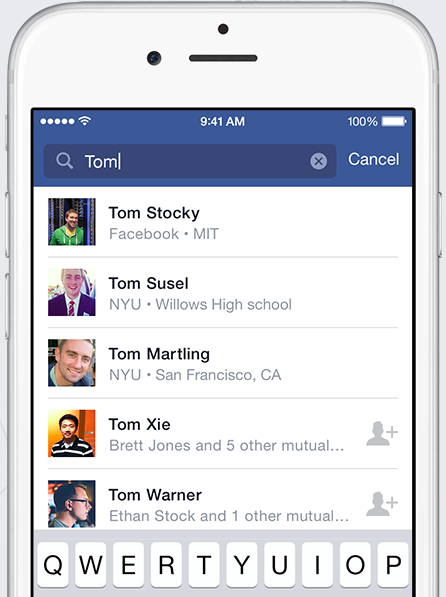


For starters, when typing in someone’s name and looking at the suggested results, Facebook will show you if you’re not connected directly to a person, as you’ll be able to add them as a friend. It would also show you how many mutual friends you have, and who those people are.

If they have a very common name, you could narrow the results down by using some of the following search tools.

How to Search by Phone Number on Facebook

You can actually search for a phone number in the regular Facebook search. This is very useful, actually. 


How to Search for Posts on Facebook

This is the probably the most common Facebook search query. It’s the one where you’re looking for any news and chit-chat on a particular topic.

You can just focus on a simple keyword or you can actually make use of Facebook Graph Search to find results relevant to you. Facebook actually gives the best example of this themselves.

There is an incredible amount of information right there at your fingertips. You don’t have to limit yourself to hashtag searches when there’s so much else you can do.

How to Search History on Facebook

If you want to search just your own posts, you can use the regular search bar as above, just using “posts by me” or you can search through your activity in a different way.

Head to your activity log: https://www.facebook.com/me/allactivity

Now, you have a simple search field you can use to find things you posted, either on your own timeline, in groups or on pages. This search isn’t actually as powerful as Facebook’s graph search.

For instance, in my activity feed I could see a post I’d recently liked from a private group. I searched for a few keywords in my activity feed and it gave me no result, even though I could clearly see it right there. With the Facebook Graph Search, I threw in the same keywords and it gave me the result saying that my friend had posted about it, then took me straight to that post.

It is preferable to use the activity feed to browse, but do all of your searching in the regular Facebook Graph Search field.


How to Search for Groups on Facebook
Groups are tough, because while you can search for public or closed groups, some of the best are kept secret. They’re hidden away and you’ll never find them by searching (because they don’t want to be found).


Also, if you search for “group” followed by the topic you’re interested in, all the top suggested results will be for groups you’re already in. The best way is;
  • Just search for the keyword of the group.
  • Press enter so you get the full selection of results
  • Click on the “Groups” tab of the results to filter it properly. 
This way you’ll find lots of groups for whatever niche you’re after.

How to Search by Location on Facebook

If you’re searching for anything at all to do with a particular place, just using the place name as a keyword will bring up casual comments, news, events, check-ins, and the rest. That’s the first step..

You can also get a little more specific, by phrasing your search like a regular sentence. Try “Coffee shops in Minnesota” and you’ll see all two of the shops jump out at you.
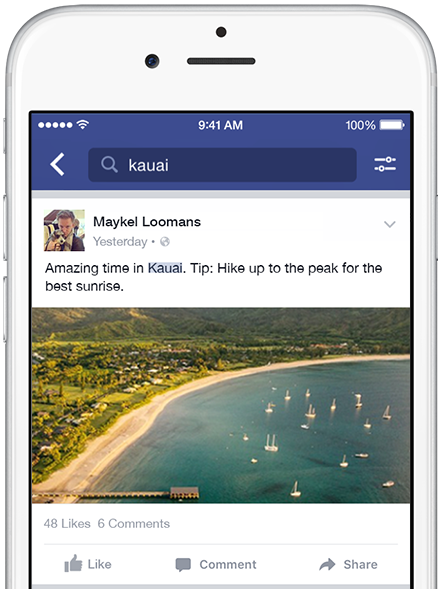

But names are re-used throughout the world and can get confusing as keywords for searches. And although Facebook does try to anticipate what you mean, eventually it has to offer more results just in case you meant something else.

But you can get even more specific too: try “Hotels in New Jersey visited by my friends” or “Places in Paris visited by people who like Ryan Gosling”. I’m sure you can think of more.

Enjoy your Facebook Search.

Read More
  • Share This:  
  •  Facebook
  •  Twitter
  •  Google+
  •  Stumble
  •  Digg

Check How to Deactivate Facebook

 Deactivate a Facebook account, Deactivate FB Account     No comments   

Check How to Deactivate Facebook: Facebook can get really busy sometimes, and you might feel the need to deactivate and take a little break. Facebook allows you to deactivate your account and come back again with your information still intact.

Deactivating your account is different from deleting your account permanently. Once your account is deactivated, you would not have any activities going on, on your page. However, Facebook would still have your information.


How to Deactivate Facebook Account
  • Click  at the top right of any Facebook page.
  • Select Settings.
  • Click General in the left column.
  • Click Manage your account, then click Deactivate your account and follow the instructions to confirm.When your account is deactivated:

Once your account is deactivated, no one else can see your profile. Certain information like massages you sent to friends may still be visible and your friends may still see your name on their list. If you decide to keep Messenger active or are logged into Messenger when you deactivate your Facebook account, then Messenger will remain active.

You can still chat with friends on Messenger,and your Facebook profile picture will still be visible in your conversations on Messenger while your account is deactvated.

Other people can still search for you to send you a message. Upon your decision to come back to Facebook after you’ve deactivated your account, you can reactivate your account at any time by logging back into Facebook or by using your Facebook account to log in somewhere else.

Note, you'll need to have access to the email or mobile number you use to log in to complete the reactivation.

We hope you found this article of great help. 
Read More
  • Share This:  
  •  Facebook
  •  Twitter
  •  Google+
  •  Stumble
  •  Digg

Facebook Sign Out of Other Devices

 Account Logout, Logout Facebook     No comments   

Facebook Sign Out of Other Devices - We spend most of our time on our Facebook accounts, only often do we need to log out. Logging out of Facebook from various devices includes different unique steps. We would show all those steps to make sure you successfully log out your Facebook account from any specific gadgets. Just follow the listed guidelines.


How To Sign Out Of Facebook

Log in to Facebook site:
  • First,Click the small arrow in the upper-right corner. This is on the blue Facebook header bar. The arrow points down, and looks like ▼.
  • Click "Log Out" at the bottom of the menu. You will right away be logged out of the Facebook website.
  1. To Log out of Facebook Mobile App
  • Open the Facebook menu. Tap the "☰ More" button in the lower-right corner (iOS), or the ☰ button in the upper-right corner (Android). This will open the Facebook menu.
  • Scroll to the bottom and tap "Log Out." This is the last button in the menu.
  • Then,Tap "Log Out" once again to verify. This will log you out of the Facebook app and return you to the app's log in screen.
2. Logging Out Remotely

This is used to log out of a computer or device you do not have access to. If you left your Facebook account open while at work or at school, or left the app open on your friends phone, you can utilize your Security Settings to log out remotely.

This approach is also used to log out of  Facebook Messenger, which does not generally have a "Log Out" alternative.

Follow the following steps to log out remotely:
  • Visit your Security Settings page. This will display all your account's security alternatives.
  • Desktop site - Click the down arrow in the upper-right corner of your Facebook homepage, choose "Settings," then select "Security." You can likewise go to facebook.com/settings?tab=security and log in if triggered.
Facebook App and Mobile website - Tap the ☰ button, scroll to the bottom, then tap "Account Settings." Tap the "Security" choice.
  • Open your list of active logins. This list will show all of the places that you are currently logged into Facebook. This will include your current device, your mobile phones, and any other locations you are logged in at.
On the desktop,  Click the "Where You're Logged In" option. You'll find this towards the bottom of the Security menu.

Facebook App and Mobile site - Tap "Active Sessions."

Broaden each category to see where you're logged in (desktop). You'll see the name of the device (as reported to Facebook), the approximate area, and the date last accessed. Utilize this details to discover the session you need to end.

You may see numerous entries for yourself, including your existing searching session, your smart phone, and Messenger.
  • End a session to log out remotely. This will end your session for that gadget, and Facebook will be gone back to the login page. 
  • If anybody is currently viewing your Facebook page from that internet browser or app, they will be kicked off immediately.
On the desktop, Click the "End Activity" link beside an entry to log out.

Facebook App and Mobile site - Tap the "X" beside an entry to log out.
  • Click the "End All Activity" connect to sign out everywhere (desktop). If you wish to be definitely sure you do not have an open session someplace 
  • Click the "End All Activity" link at the top of the "Where you're visited box." This will sign you out all over, consisting of the internet browser you're currently using.
This alternative only appears on the desktop website.

 3. On Facebook Messenger App
  • Use the remote logout function described above. Facebook Messenger does not have a "Logout" option built-in to the app. This implies you'll have to utilize some shortcuts to get your account logged out. The fastest way is to utilize the remote logout tool talked about in the section above. Find the "Messenger" session and end it to log out of the app.
This method is the only available means to log out from Messenger on an iPhone, iPad, or iPod Touch.
Clear app data on Android devices: Another method to log out of the Android version of Messenger is to clear the app's information;
  • Open your Android's Settings app.
  • Select "Apps" or "Application Supervisor."
  • Tap "Messenger" in the list of apps.
  • Tap the "Clear Data" button. If you don't see it, tap "Storage" initially. This will log you from the Messenger app.
4. Log out of the Facebook app so you cannot be logged back in. 

If the Facebook app on the very same gadget as Messenger is logged in, Messenger can be logged back in with a single tap. You will need  to log out of the Facebook app also if you do not want to make it simple to log back into Messenger.

This should help you Log out of Facebook.

Read More
  • Share This:  
  •  Facebook
  •  Twitter
  •  Google+
  •  Stumble
  •  Digg

How to Update my Facebook

 Update     No comments   

How to Update my Facebook: Facebook is constantly putting effort into giving you the best of of experiences on the app and hence they are always running updates on the application. Its not mandatory to update your Facebook app but it gives you access to new and improved features. It is also vital because Facebook is always updating their security settings and yow would want to have an account secured with the latest technology.


Steps to Update Facebook App
  • Swipe through your phone home screen or app drawer and open Google Play store app.
  • Now that you've opened the app, we’re checking to upgrade, swipe from left to right on your device’s display. The slide-out menu will appear. Another way is, you can hit the slide-menu’s dedicated button which is to the left of “Google Play” in the app’s search bar.


  • Scroll down a bit and find Settings. Select that.

  • Head down towards the bottom of the settings screen till you reach the About section. It’s where you’ll identify the Play Shop variation on your gadget. To examine if it’s updated or not, tap anywhere on Play Store version.


  • If not update is available, the Google Play app will let you know exactly what “Google Play Store depends on date.” But, if there’s an upgrade to be download then it will start immediately.

  • Update Facebook Lite App, Taking all of these actions will ensure that your phone or tablet running Android includes the current version of the Play Store in the Google Play app.
If there is an update on the Facebook Lite app, you would be able to update yours following these steps.

Read More
  • Share This:  
  •  Facebook
  •  Twitter
  •  Google+
  •  Stumble
  •  Digg

Deactivating Instagram Account

 Deactivate Instagram     No comments   

Deactivating Instagram Account: You are probably feeling like you have to capture every single moment of your existence and put out for the world, or perhaps you’re tired of seeing the seemingly perfect pictures of everyone else’s life. If you're tired of juggling multiple accounts and it probably takes most of your time, you can deactivate your account.


Thankfully, deactivating your Instagram account requires just a few clicks and confirmations on the Instagram website. This permits you to deactivate your account for a brief period of time, and you can still access it later. When you do this, your account is hidden from public view immediately, but all of your content- like your photos, comments and likes - are still retained and can be reinstated when and if you choose to reactivate your account.

How to Temporarily Deactivate an Instagram Account

  • Visit Instagram.com and log into your account as above.
  • Click on your username in the top right corner of the page.
  • Then click the 'Edit Profile' button next to your username.
  • Scroll near the bottom of the page and look for the 'Temporarily disable my account' link near the bottom-right corner.
  • Select  your reason for wanting to disable your account from the drop-down menu.
  • Click on the box below 'To continue, please re-enter your password' and re-enter your account password in that field.
  • Click on the button labeled 'Temporarily Disable Account.'

Note: You can disable your account up to once a week.


Read More
  • Share This:  
  •  Facebook
  •  Twitter
  •  Google+
  •  Stumble
  •  Digg

Forgot Email and Password

 Password Reset, Reset Password     No comments   

Once you have created an Instagram account, you can log in to the social networking site on your iOS or Android device using the corresponding app, or you can log in on any computer. If you want to log in but have forgotten your password, you can reset it using your Facebook account, provided you connected your Instagram account with Facebook and can access the email address listed on your Instagram account.


If you can't remember your password, you can reset it through your email address or your Facebook account. To reset your password, first tap Forgot? next to Password on the log in screen.

  • To reset through your email address, tap Username or Email, enter your username or the email address you used to create your account and tap search. Choose Send a Password Reset Email.
  • To reset through Facebook, tap Reset using Facebook. You may be asked to log into Facebook. You can then enter a new password for the Instagram account that was most recently linked to your Facebook account.
If you can't access the email you registered with and you didn't link your Instagram account to Facebook, we're not able to give you access to this account.

How Do I Change or Reset my Facebook Password?
Change Your Password

To change your password on Facebook if you're already logged in:
  • Click  in the top right corner of any Facebook page and select Settings.
  • Click Security and Login.
  • Click Edit next to Change Password.
  • Click Save Changes.
If you're logged in but have forgotten your password, follow the steps under Change Your Password then click Forgot your password? and follow the steps to reset it. Keep in mind that you'll need access to the email associated with your account.

Reset Your Password
  • To reset your password if you're not logged in to Facebook:
  • Go to the Find Your Account Page.
  • Type the email, mobile phone number, full name or username associated with your account, then click Search.
  • Follow the on-screen instructions.

How Do I Change or Reset my Instagram Password?
If you can't remember your password, you can reset it using your email address, phone number or Facebook account. If you're not able to reset your password this way, open the Instagram app for additional help.

Resetting your password using your email address, phone number or Facebook account
To reset your password, first open the Instagram app. On the login screen, tap Get help signing in below Log In. From there:
  • On Android: select Use Username or Email, Send an SMS or Log In with Facebook, then enter your information and follow the on-screen instructions.
  • On iOS, tap Username or Phone. Enter your email address, username or phone number, then tap Send Login Link.
Read More
  • Share This:  
  •  Facebook
  •  Twitter
  •  Google+
  •  Stumble
  •  Digg

How You Download your Facebook Photos

 Facebook Photos     No comments   

Facebook isn’t the best place for keeping your photos, but its convenience makes it a decent space for sharing them. If you want to download a photo you’ve uploaded (or even one your friend has uploaded), here’s how.


Download Individual Photos
Find the photo you want to download on Facebook. This can be any photo you can view on Facebook, no matter whether yours, a friend’s, or a complete stranger’s that has made their photos public. Just remember, unless you took the photo yourself, it doesn’t belong to you and you can’t do whatever you want with it.

  • Hover over the image until the photo’s (and the Like, Comment, and Share buttons at the bottom) appear.
  • Click the “Options” link in the bottom right corner, and then select the “Download” command.
  • The photo should now download in the highest resolution Facebook has on their servers.
  • On mobile apps, the process is similar. Open the photo you want to save, tap the three little dots in the top right corner, and then tap the “Save Photo” command.

Download All Your Photos At Once
Facebook also has a tool that lets you download all your data—including wall posts, chat messages, About You information, and, of course, photos. On the Facebook site, click the downward facing arrow in the top right corner, and then select the “Settings” option. You can also go directly to Facebook.com/Settings.

  • Click “Download a Copy of Your Facebook Data” at the bottom of the “General Account Settings” page.
  • Next, click the “Start My Archive” button.
  • You need to enter your password to verify. You’re then told that it will take Facebook a few moments to gather your data, and that they’ll email you when the archive is ready.
  • When the email arrives, click the link it provides.
  • On the resulting page, click the “Download” button, type your password again, and your archive will start downloading. If you’ve used Facebook a lot, the download could be quite large. 
The archive downloads as a .ZIP file. Extract it, and then navigate to the “Photos” folder.

Here, you’ll find sub-folders with every album and photo you’ve ever posted to Facebook. There are also HTML files you can open to show a rough, offline version of Facebook in your browser that might make the photos easier to scan.

Read More
  • Share This:  
  •  Facebook
  •  Twitter
  •  Google+
  •  Stumble
  •  Digg
Newer Posts Older Posts Home

Blog Archive

  • ▼  2019 (30)
    • ▼  January (30)
      • Facebook Lite Download
      • How to Upload High Quality Photos to Instagram
      • Login Instagram Online
      • Who Viewed My Facebook Profile Recently 2019
      • Get Real Instagram Followers
      • Instagram Facebook Login
      • Who Visited My Facebook Profile How to Check
      • Temporarily Disable Facebook Account
      • Free Collage Maker for Facebook
      • How Do I Find My Videos On Facebook
      • People You May Know Facebook
      • How to Find someone On Facebook by Phone Number
      • How Do People Get Famous On Instagram In 2019
      • How to Change Date of Birth in Facebook
      • Posting Multiple Pictures On Facebook
      • How To Find Your Blocked Friends On Facebook
      • How to Get Unblocked On Facebook
      • Add Phone Number to Facebook Account
      • Deactivate Instagram Account Link
      • How We Close Facebook Account
      • How to remove fb temporarily or permanently
      • How to Unsend a Facebook Message | Facebook Messen...
      • How to deactivate your FB account in 10secs | Temp...
      • How can i cancel my Facebook account totally | Clo...
      • FACEBOOK MARKETPLACE BUY AND SELL SAFELY
      • How Do You Know Who Unfollowed You | How to Know W...
      • How To Change My Fb Account Name | Edit Your Faceb...
      • How To Use Facebook As My Business Page - Messenge...
      • How To Add My Phone Number To Facebook | Facebook ...
      • How To Delete A Post From Your Facebook Timeline |...
  • ►  2018 (8737)
    • ►  December (14)
    • ►  November (568)
    • ►  October (269)
    • ►  September (922)
    • ►  August (1873)
    • ►  July (266)
    • ►  June (192)
    • ►  May (1544)
    • ►  April (1335)
    • ►  March (1115)
    • ►  February (639)

Copyright © Facebook Help Center